Import a Product From a Third Party Integration
Last updated: August 25, 2026
The main purpose of Crstl's catalog is to associate items in your integrations with items coming from EDI documents. There are a few different ways to bring an integration item into the catalog.
Using the Add Product Button
On any Products tab, click Add Product.
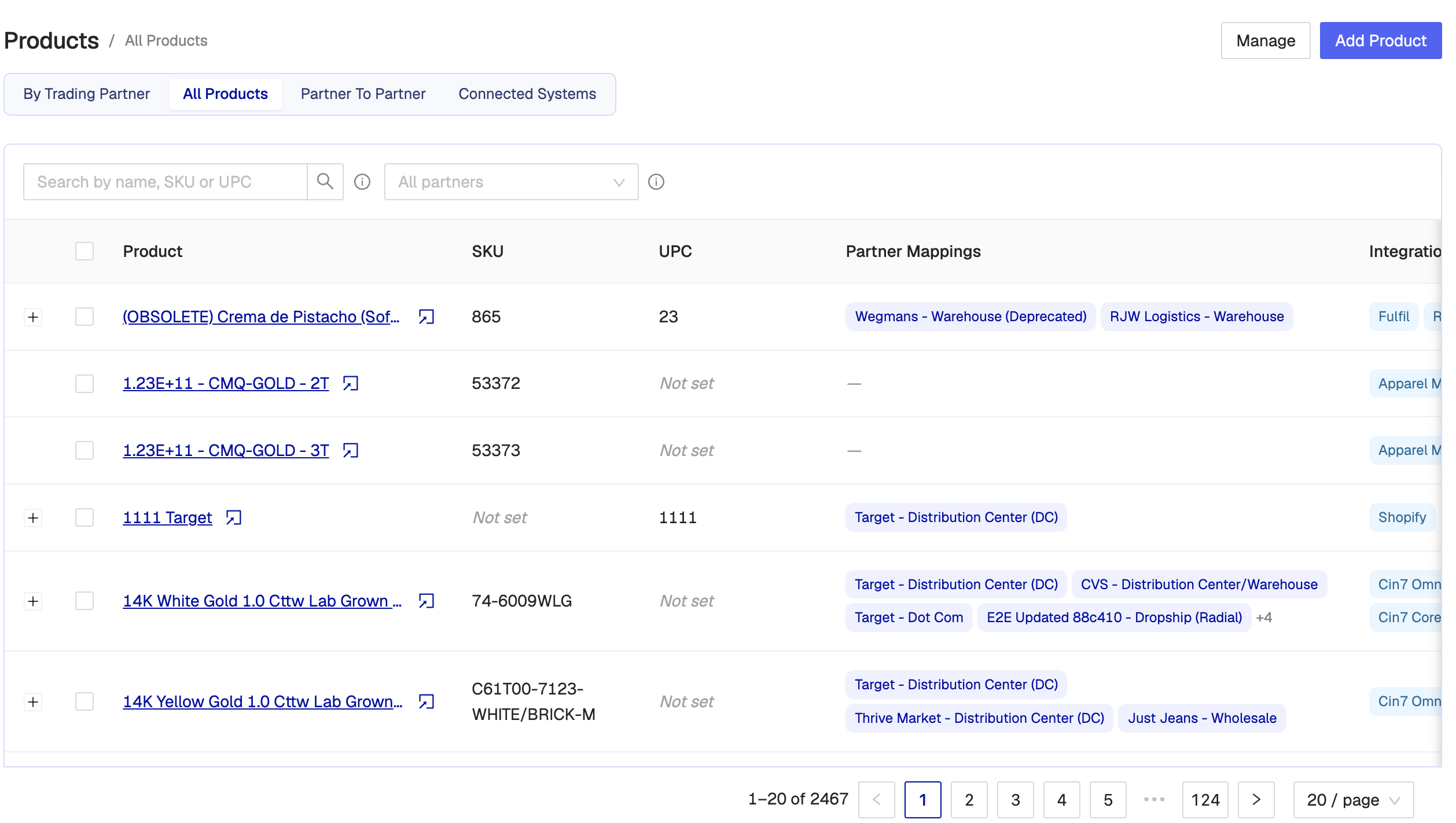
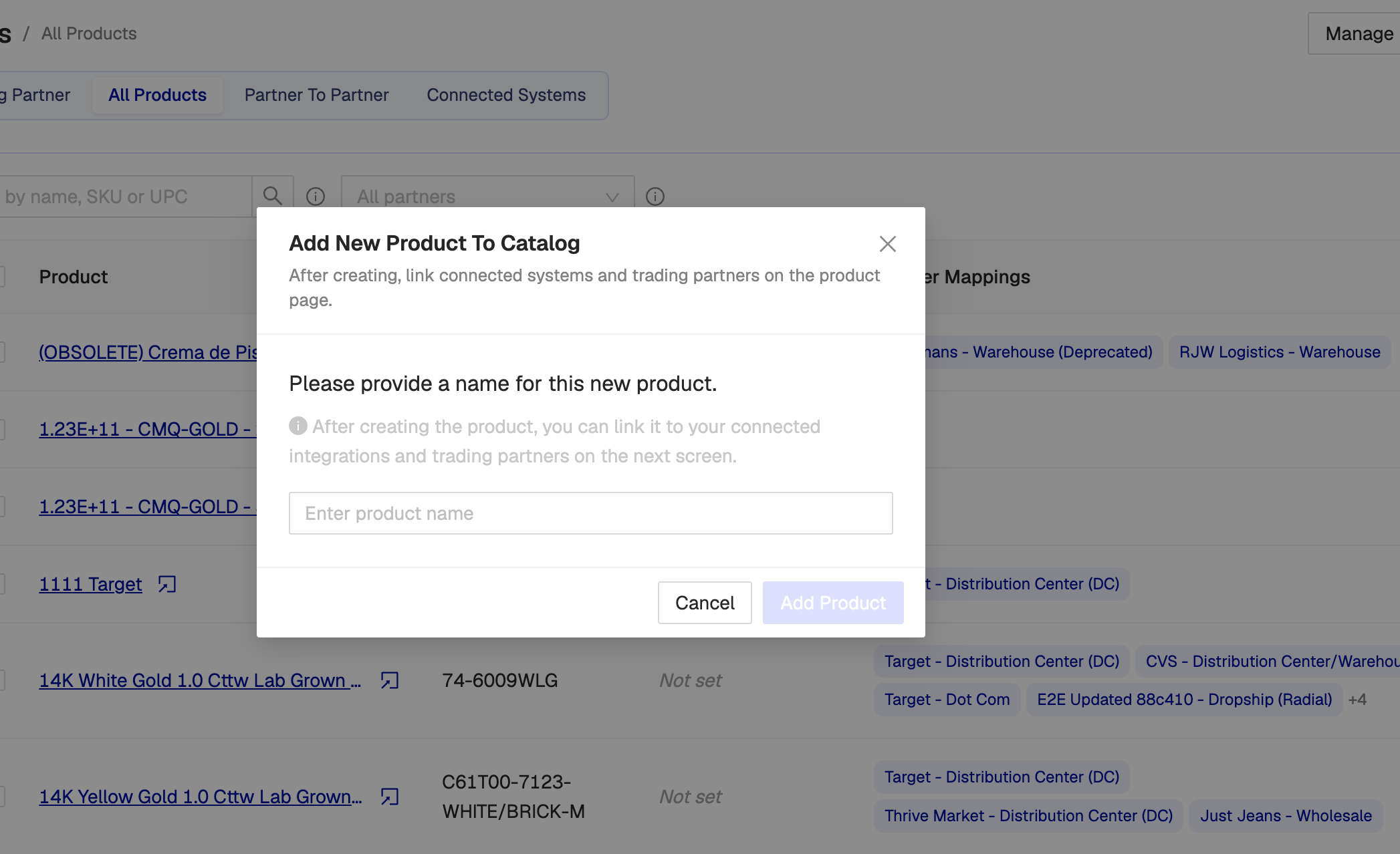
Enter a human-readable name so you can find the item later. Using the SKU is a convenient substitute if there is no easy name.
Click Add Product.
You land on an empty product page with Product details open. Follow Product Catalog Overview to add an integration link and trading partners.
Importing a Product From a Connected System
Open the Connected Systems tab.
Pick the integration from the dropdown (for example Shopify).
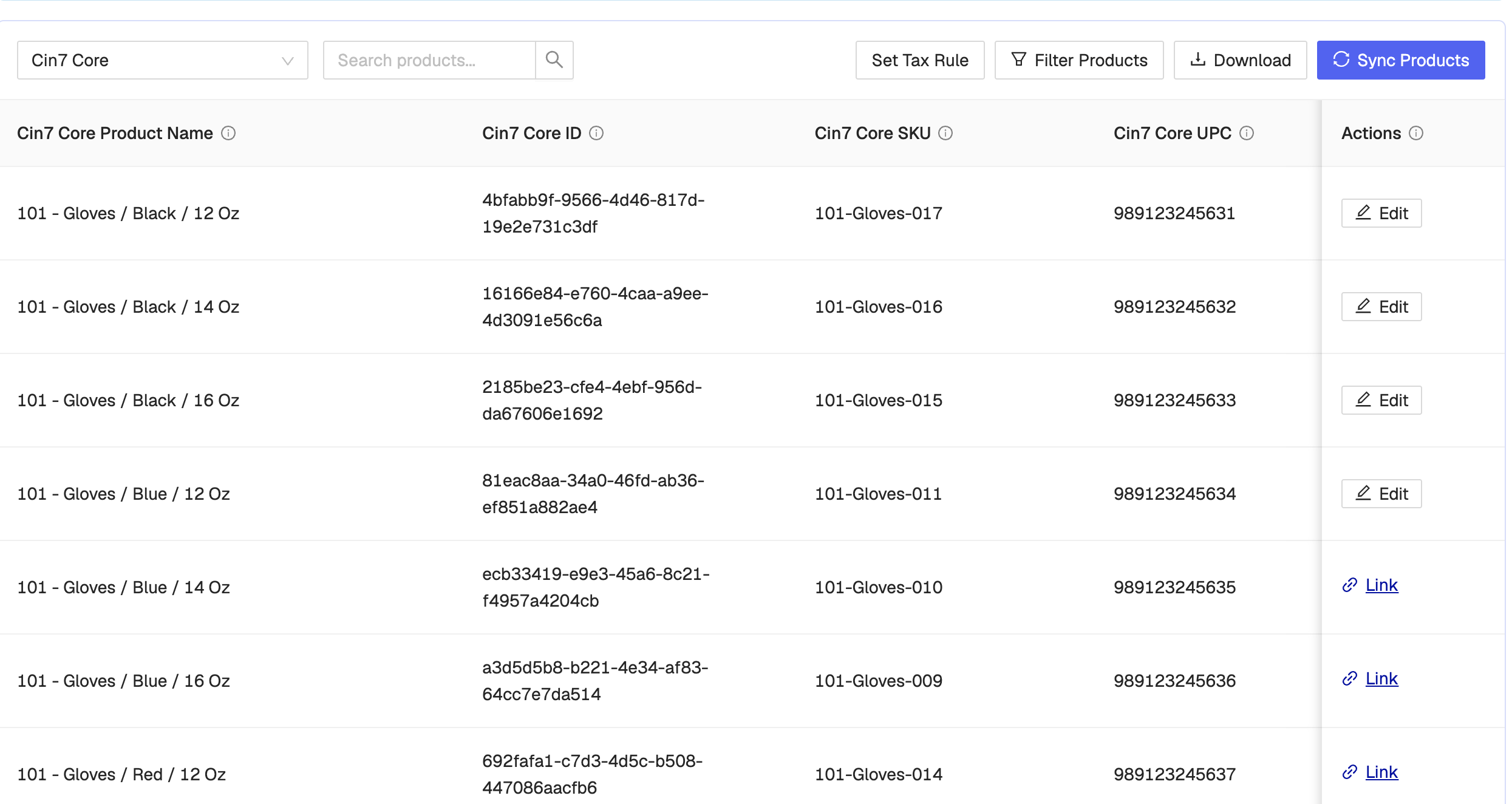
The products on this page are a read-only copy of what is in that system. Editing the The products on this page are a read-only copy of what is in that system. Editing the item itself still happens in Shopify, NetSuite, Cin7, etc. Linking it here creates (or opens) a Crstl catalog product.
On the row you want, click Link.
Note: Sync Products (blue button at the top) pulls the integration's product list into Crstl so you can see it here. It does not create catalog mappings.
Once you click Link, you are taken to a new product page. That product is named from the integration item, filled with the SKU and UPC from the integration, already linked to that system, with Product details open.
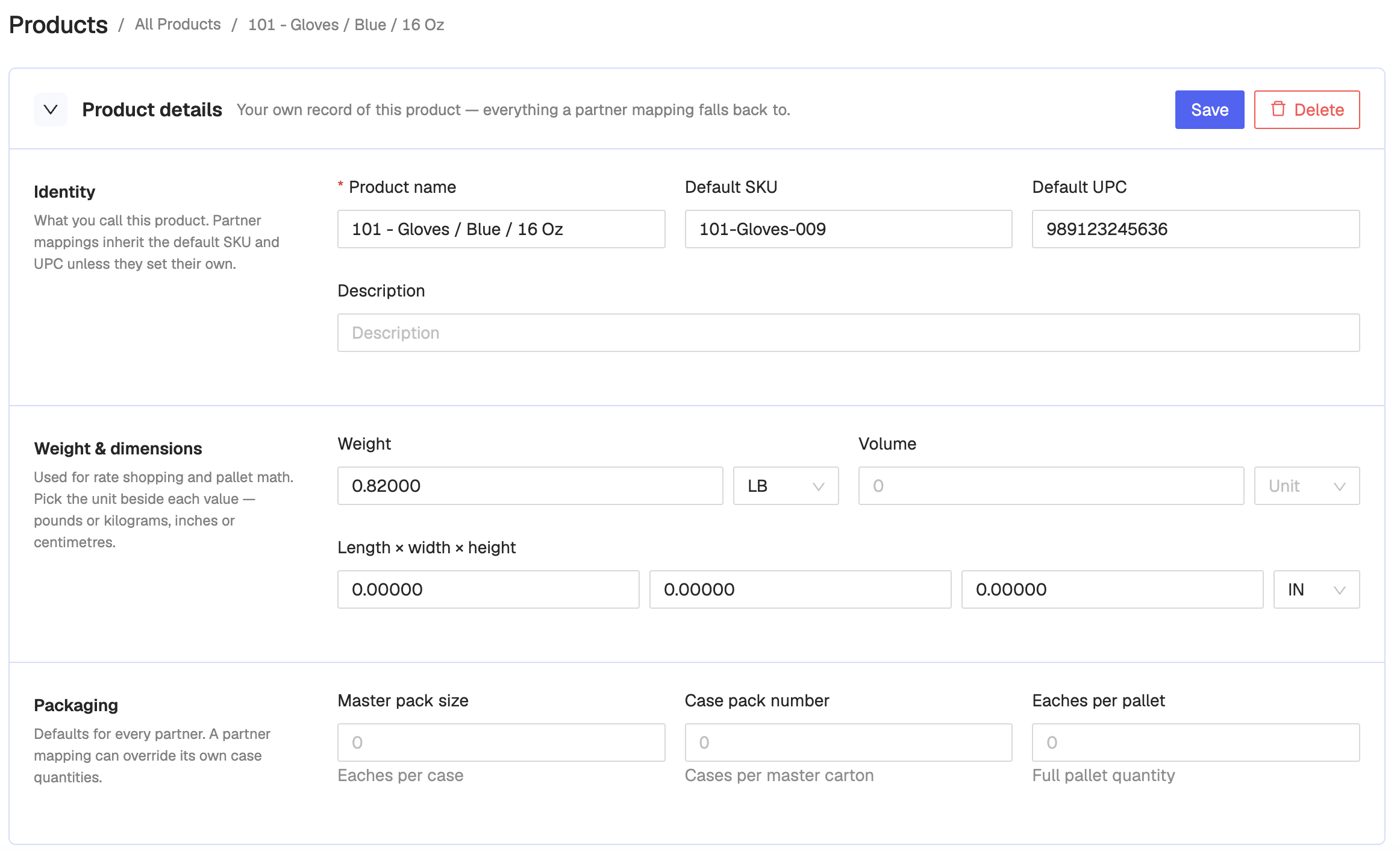
If the item was already linked, Edit opens the existing catalog product instead of creating a new one.
For integrations with variants (Shopify, Cin7 Omni), expand the product row. Each variant maps to its own Crstl catalog item — link the variant you actually sell, not only the parent product.
Then add trading partners on that product. Follow Product Catalog Overview (Trading Partner mapping).
Replace both # with the Overview article URL. If you can deep-link, use Editing a Product for the Add Product path and Trading Partner mapping for step 4.