Automation Logs: Monitor, Troubleshoot, and Re-Trigger Integrations
Last updated: April 27, 2026
We’re excited to introduce Automation Logs — a new UI in the Crstl platform designed to give you complete visibility into your automations and integrations in one centralized place.
With Automation Logs, you can quickly identify successful runs, investigate failures, and re-trigger automations after resolving issues — without needing to search through individual records.
What Are Automation Logs?
Automation Logs provide a filterable and searchable activity log of all automation activity across your account, including:
System integrations
Incoming document flows
Outgoing document flows
Successes and failures
Trigger history
Retry / re-trigger actions
This makes it easier to understand what happened, when it happened, and what action to take next.
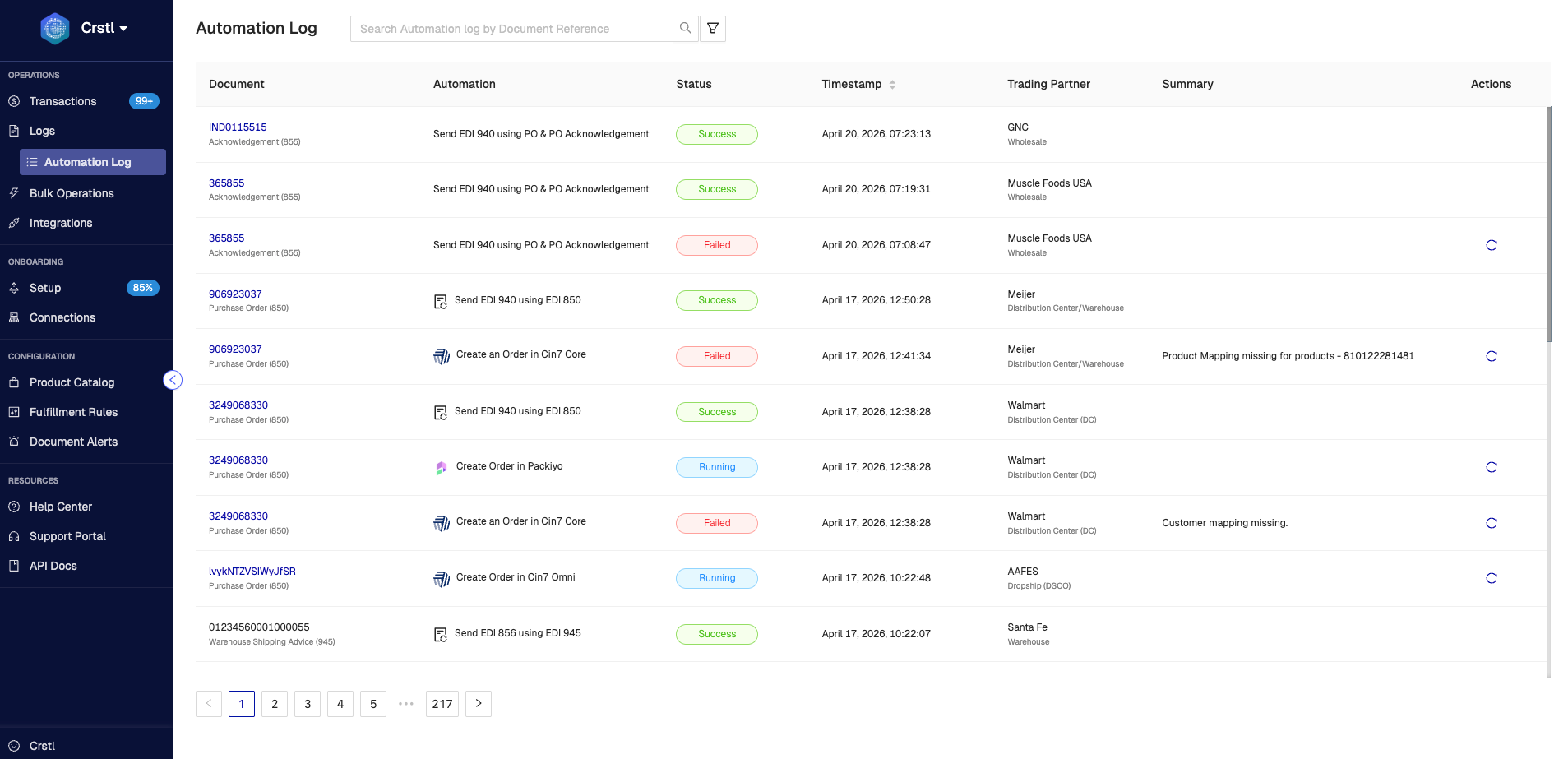
Key Benefits
1. Quickly Identify Successes and Failures
See the status of every automation run in one place so you can quickly spot issues that need attention.
Common statuses may include:
Success – Automation completed successfully
Failed – Automation encountered an error
Running – Automation is currently processing
Queued / Pending – Automation is waiting to run
Instead of guessing whether data synced correctly, you’ll have clear visibility into each run.
2. Search and Filter with Ease
Need to find a specific failed sync or document flow?
Use filters and search to narrow results by:
Status
Automation type
Date / time
Related document or record
Integration flow
This helps teams troubleshoot faster and reduce time spent hunting for issues.
3. Re-Trigger Failed Automations
Once an issue has been resolved, you can retry or re-trigger the automation directly from the Automation Logs UI.
No need to locate the original PO, shipment, invoice, or integration record first.
This allows you to recover quickly and keep orders moving.
Example: Missing Product Mapping Caused a Failed Integration
A retailer sends a purchase order into Crstl, and the order needs to sync into your ERP, WMS, or other connected system.
During processing, the automation fails because one of the ordered SKUs does not yet have a valid product catalog mapping between Crstl and your external system.
What Happens Next?
Open Automation Logs
Locate the failed automation run
Review the error details
Add or correct the missing product mapping (See Product Catalog articles)
Return to the Automation Logs and click the Re-Trigger (circular arrow)
The automation will run again using the corrected mapping, allowing the order to sync successfully.

Why This Matters
Automation Logs help your team:
Resolve issues faster
Reduce manual troubleshooting
Improve operational visibility
Recover failed integrations quickly
Keep orders, shipments, and invoices flowing smoothly
Need Help?
If you have questions about Automation Logs or need assistance troubleshooting an automation failure, contact the Crstl Support team.